Free Trial
Close

USA
Hardware R&D and Test Office, 871 Harold Pl., Ste 112
San Diego, CA, 91914, United States

EUROPE - SPAIN
PCTT Tenerife, C/Rectora María Luisa Salguero
Las Mantecas, 38320, Tenerife, España

info@agnospcb.com

EUROPE - GERMANY
Munich
Michael Matauscheck michael@agnospcb.com

Trial guide

Below is a detailed guide outlining the steps required to use the trial version. Please follow each step to experience AgnosPCB’s technology. Before beginning the process of using the Trial, it is recommended to follow the following tips to obtain quality images that you can work with.

  • You will need a camera with at least 12 Mpx resolution.
  • Blurry or low-resolution images will lead to poor fault detection results. Example of the image quality of the AgnosPCB system.
  • Avoid using dirty PCBAs. Please clean the PCBA before taking the picture.
  • You should try to ensure the board is illuminated as well as possible, avoiding reflections and shadows.
  • If you prefer to use your smartphone for image capture, follow the steps detailed in the following link.

To perform this trial inspection, we have two options available:

WebApp guide:

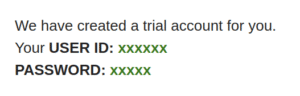
STEP 1: First, you will receive an email from Support informing you that a trial account has been created for you. This email will provide you with the credentials you must use to log in to both the web application and the inspection software tool.

In addition to your login credentials, the email informs you that you have received 50 complimentary credits to perform the inspections. To use the WebApp, you must access the link provided in the email or by clicking on the following button:

Once inside, you must enter the credentials you received in the email to loggin (USER ID + PASSWORD) and click the «Submit» button.

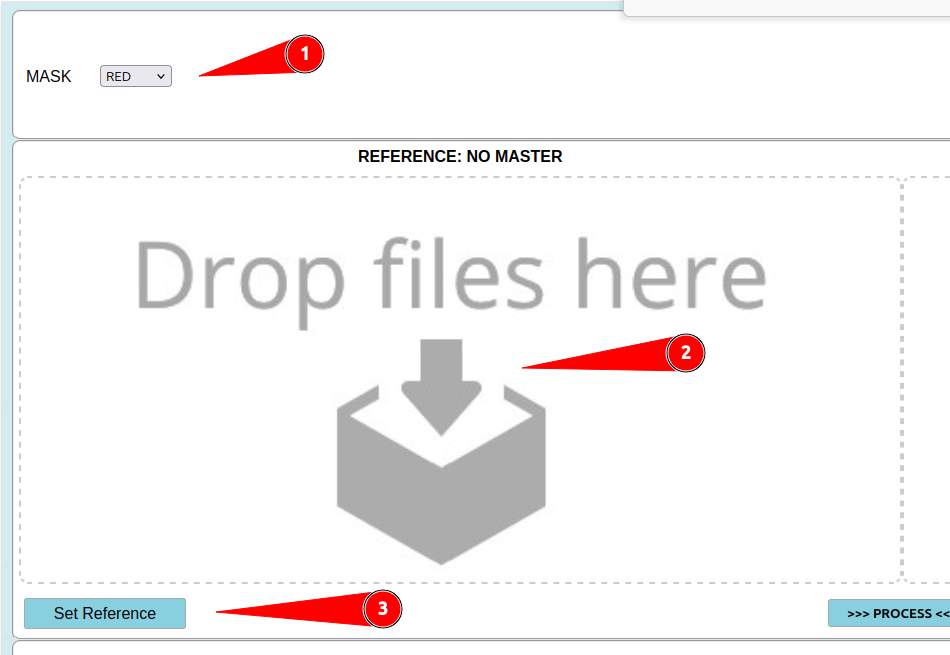
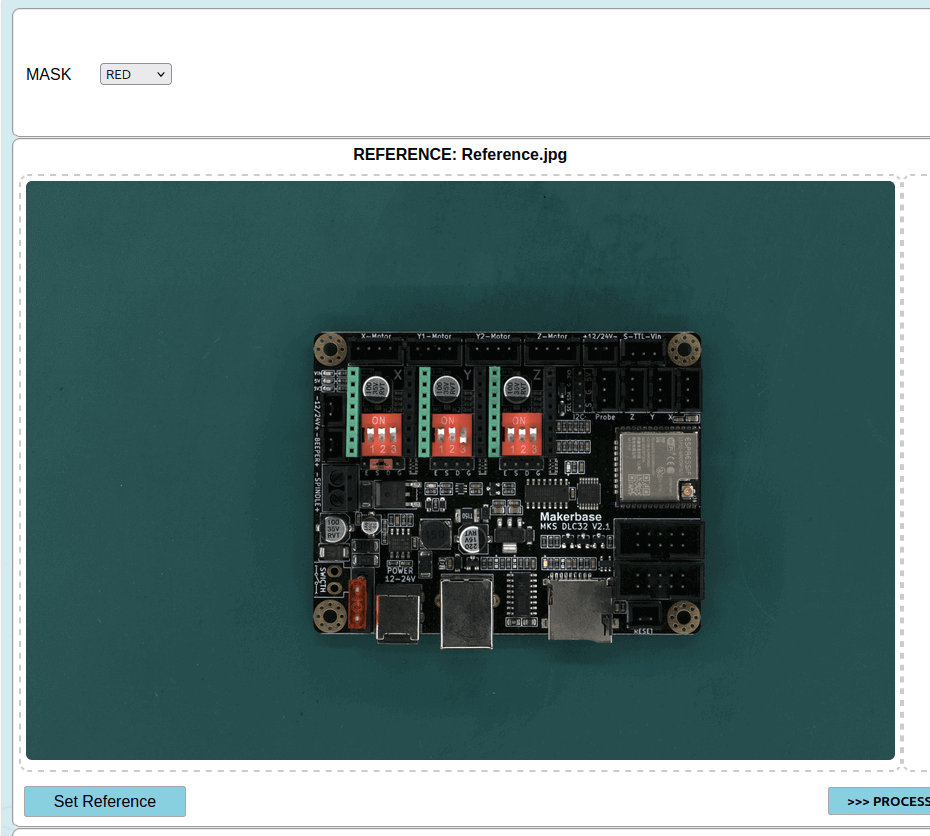
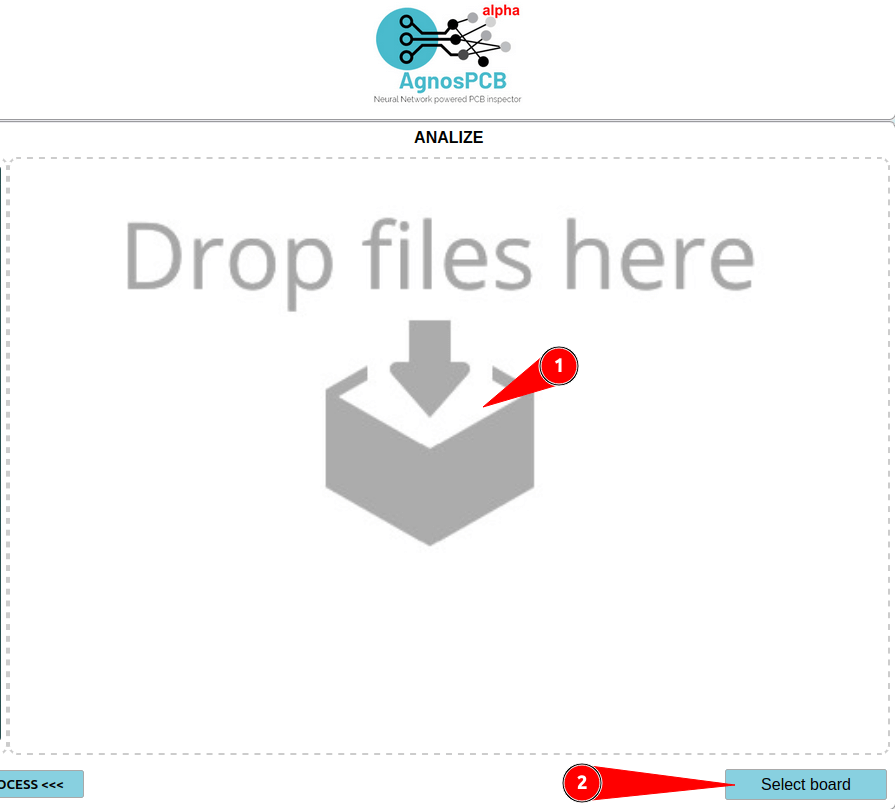
STEP 2: Once the session has started, you can choose the mask color (1). The default color is red, but you can also choose between green and blue. Next, upload a reference image. To do this, you can drag the image directly into the corresponding box (2), or you can click the «Set reference» button and select the desired image (3).

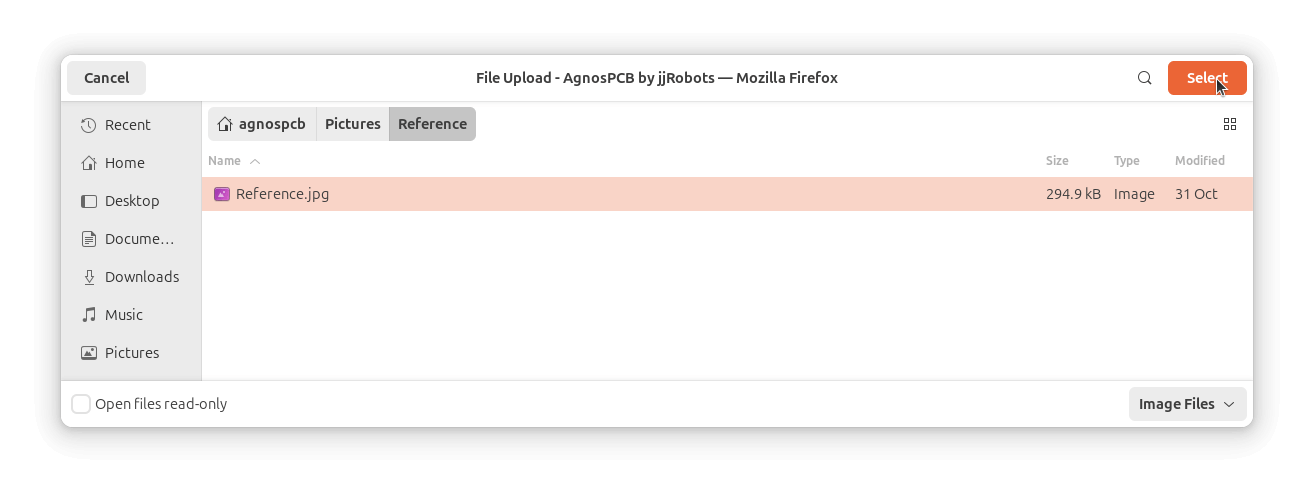
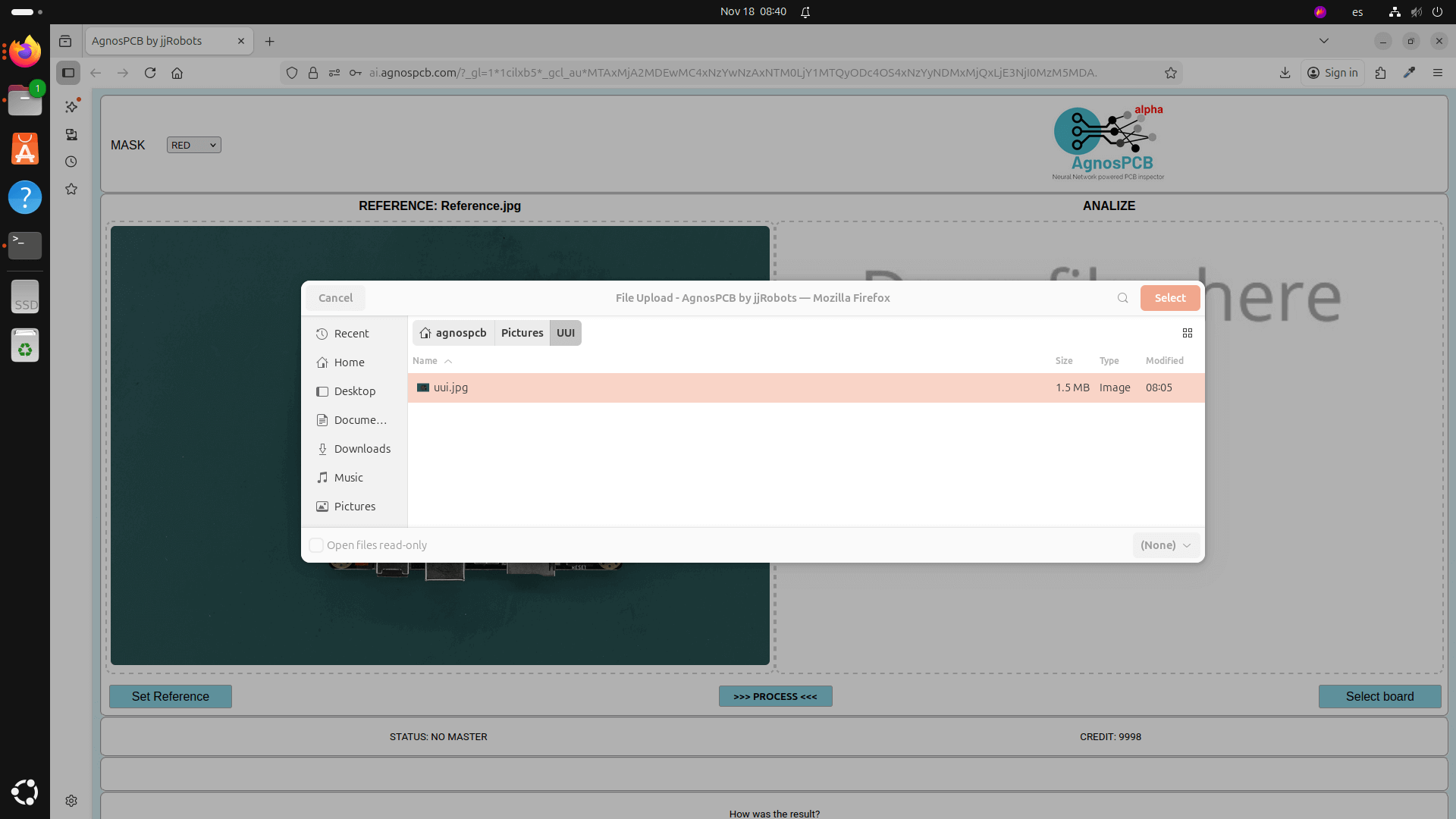
Once we click «Set reference», we browse to the path where our image is located and select the desired image.

STEP 3: With our reference image already selected, we will proceed to upload an image of the unit we want to inspect. To do this, you can drag the image directly into the corresponding box (1), or you can click on the ‘Select board’ button and select the desired image (2).

Once we click «Select board», we browse to the path where our image is located and select the desired image.

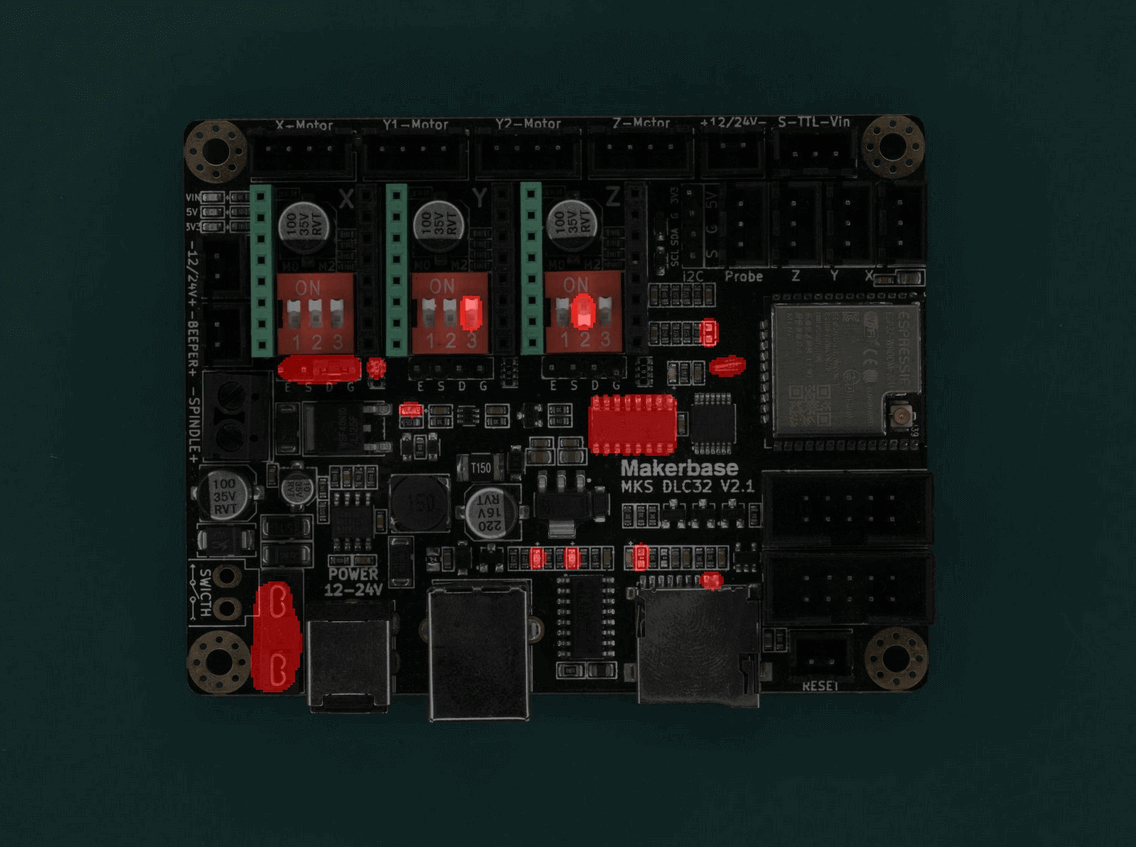
STEP 4: Once we have uploaded both the Reference image and the image of the board to be inspected, we click on the ‘Process’ button(1) to begin the analysis between the two boards. Just below the button, once selected, an image will appear with the mask indicating the possible errors contained on that board.

The result obtained will be the inspected image with a superimposed mask, which will indicate the errors detected on the board. In this case, the errors are marked in red, which was the color selected for the mask.

Inspection tool software for Windows guide:

To begin, you can download the inspection tool software for Windows using the button below:

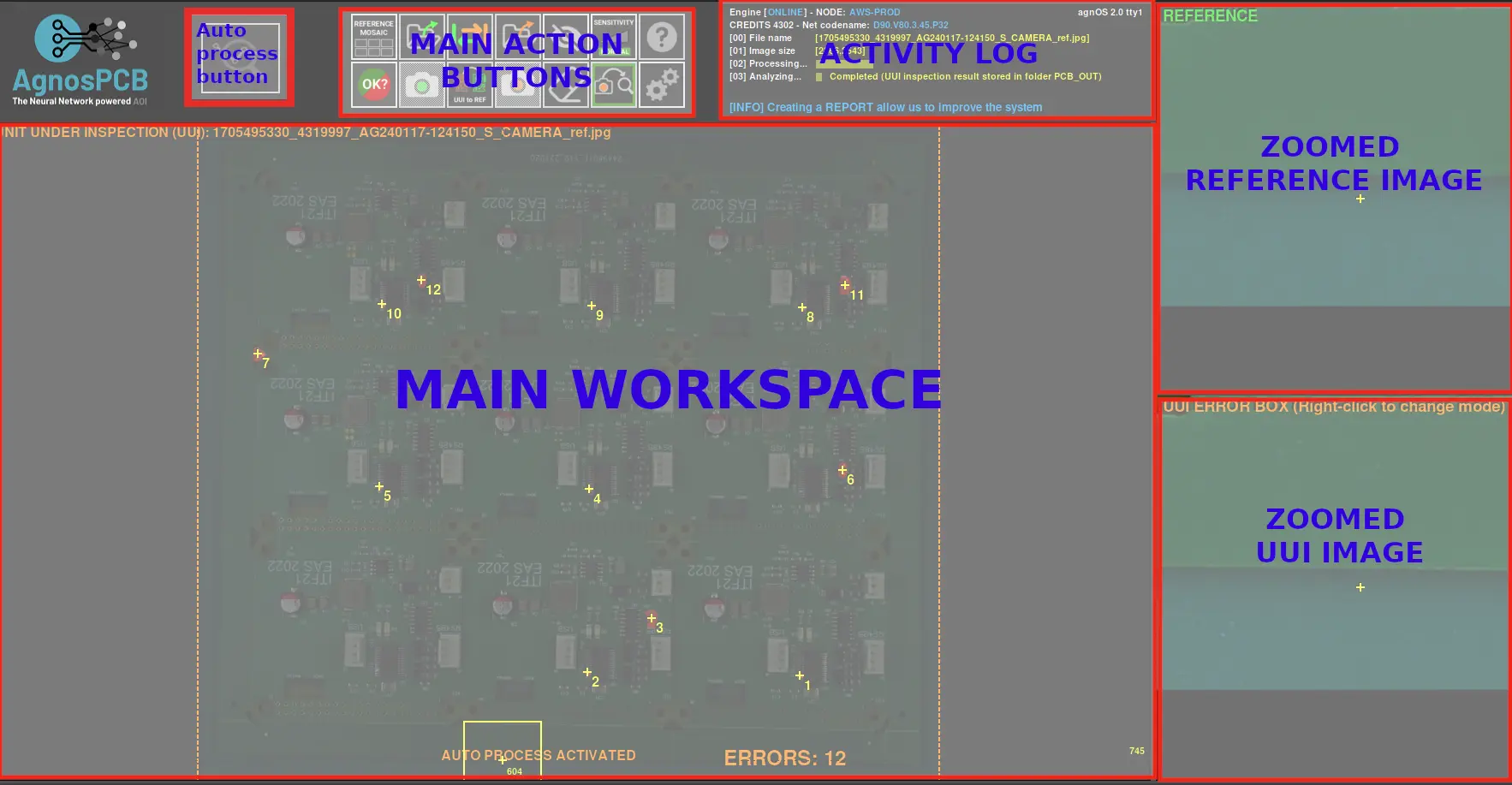
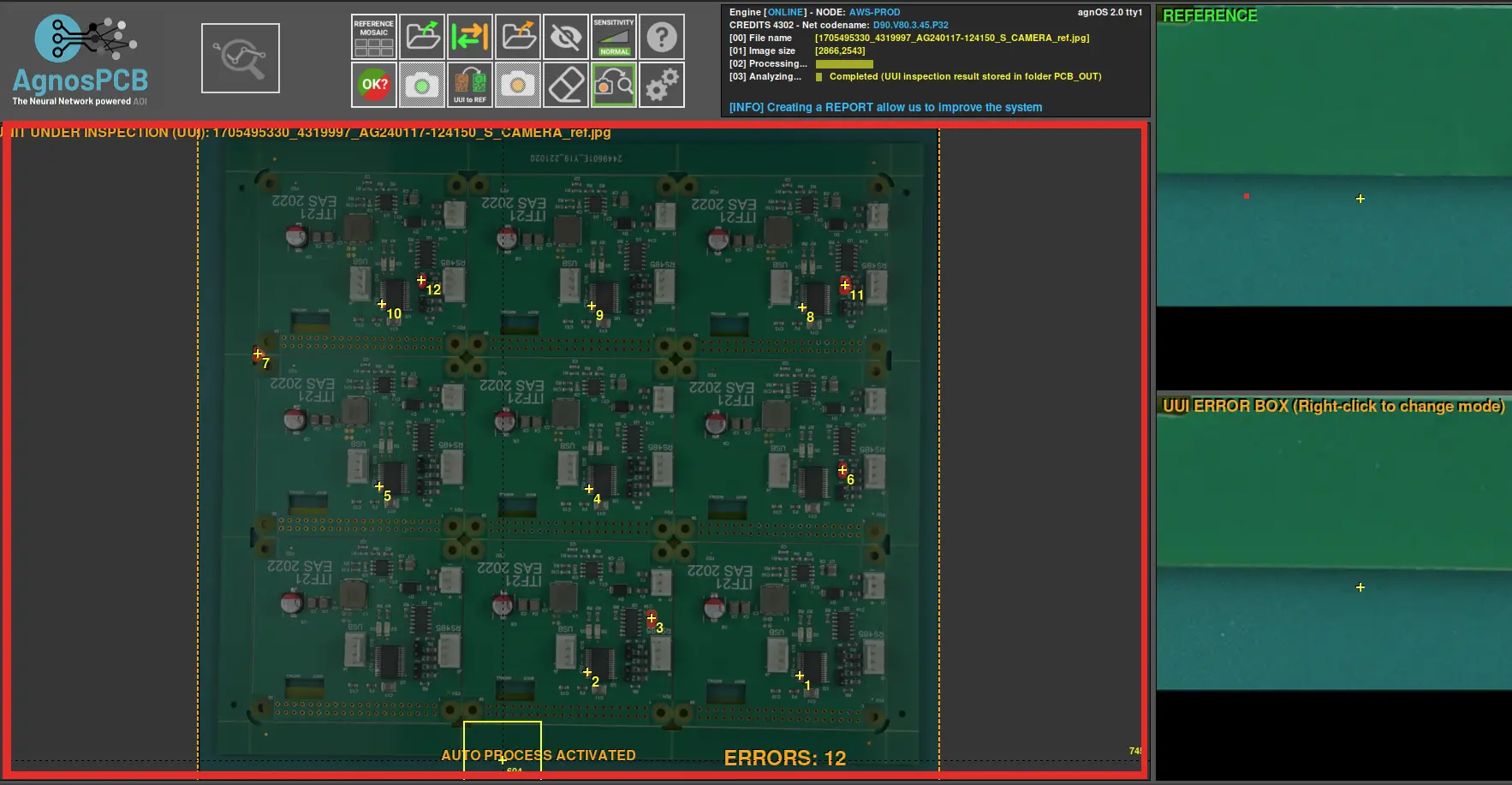
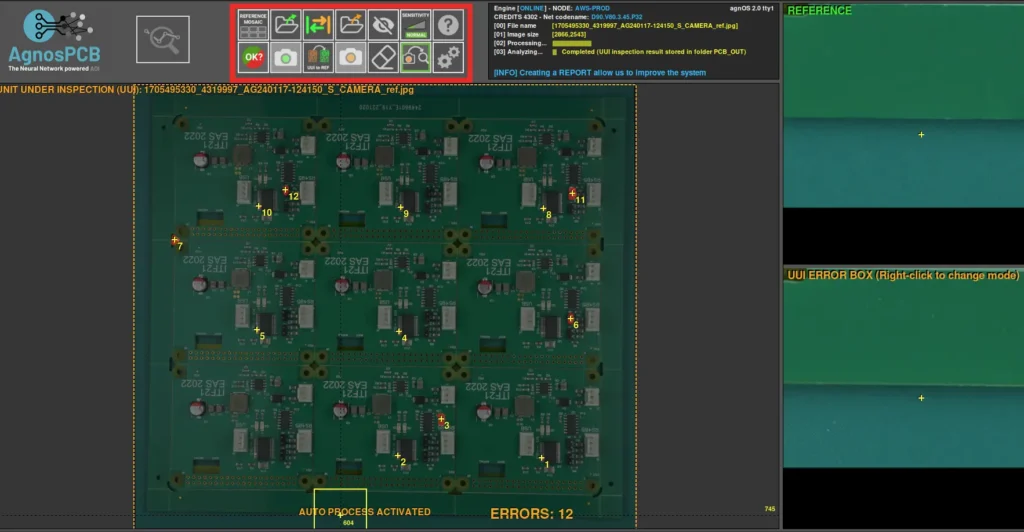
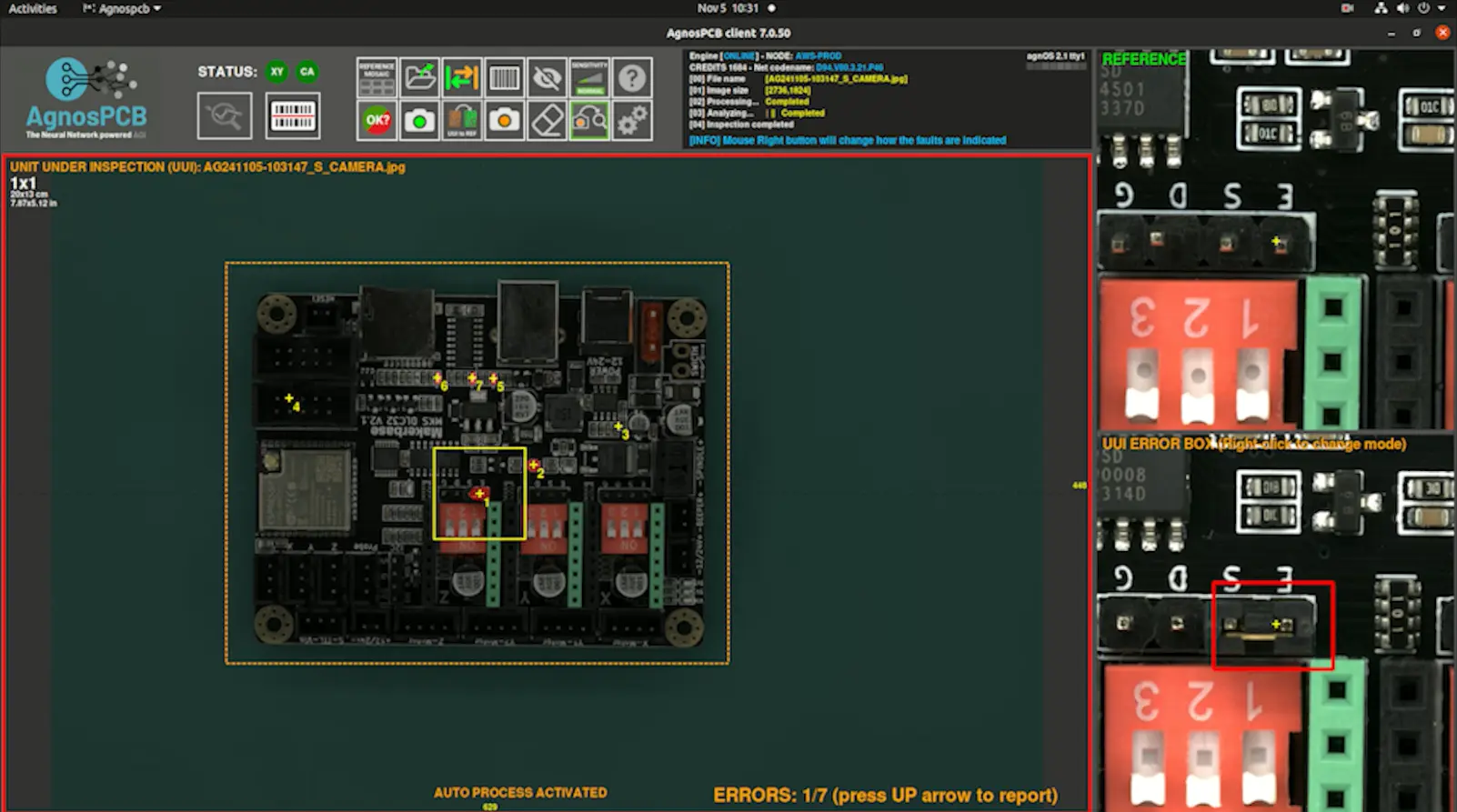
The following image describes the main working areas of the AgnosPCB inspection software.

Trial guide

The Inspection start button is located in the upper left corner. A simple click triggers a sequence of actions to inspect the current UUI image.

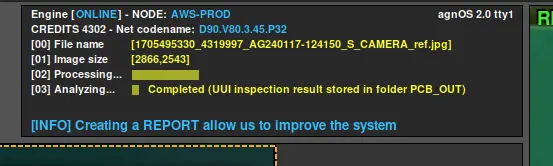
The activity log area is located in the top right side and shows the current available credits and application’s operational details.

This is the main section where you work with the images, whether it’s the REFERENCE or the UUI.

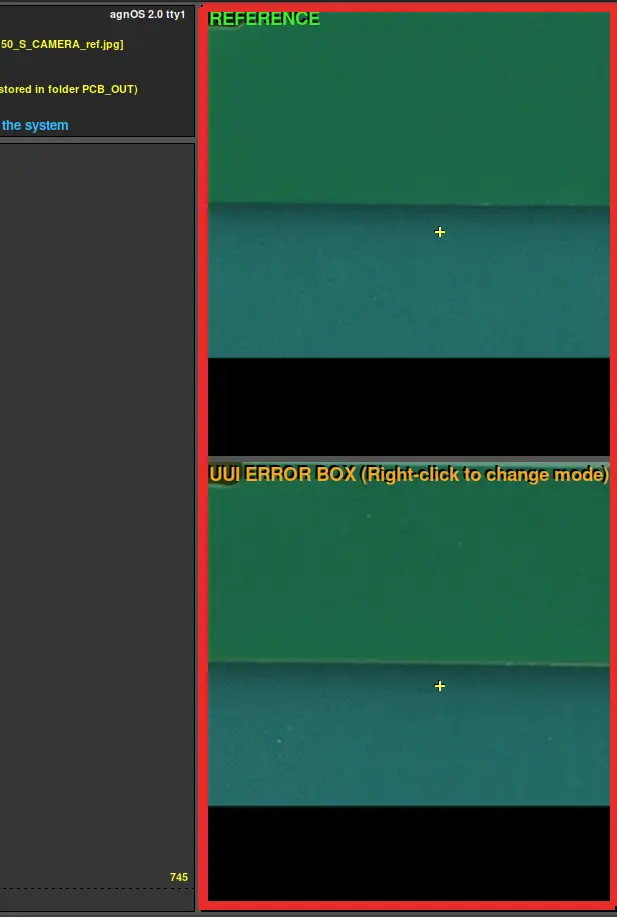
This interface section, is divided in two parts. The first displays the REFERENCE image, serving as a standard for comparison, while the second part shows the UUI image. These images are maginified and move in parallel showing exactly the same area in the REFERENCE and UUI. This areas are defined by where the cursor is pointing in the image.

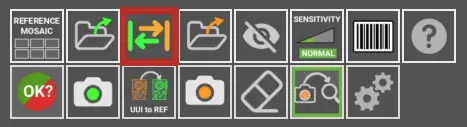
Here are located various buttons and options.They’re designed to optimize your workflow and speed up your tasks.

Workflow

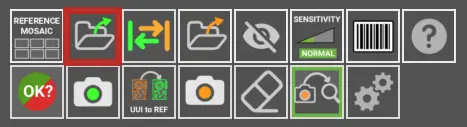
  • LOAD REFERENCE as file: use this icon to load a image file as a REFERENCE.

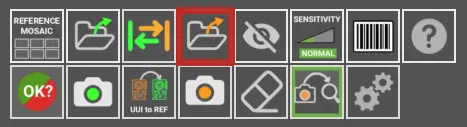
  • LOAD a UUI as file: it loads a UUI image from a file stored in the unit.

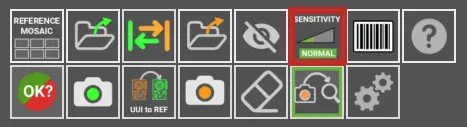
  • Sensitivity: change the system fault detection sensitivity (NORMAL/HIGH/VERY HIGH).

  • SWAP: if necessary, toggles between REFERENCE and UUI images.

  • Press the inspection start button to begin the inspection.
  • Once the images have been processed, we can check the inspection performed. In the main workspace, you can observe the UUI with the error mask, and by moving the cursor over the board, in the zoomed area, we can verify the reference and the UUI in the same location (the one the cursor indicates).

For further information about the inspection software, please visit our documentation page by the following link.